Free AI PDF Summarizer: Best Tools in 2026 (No Signup, Long PDFs, Privacy)
Looking for a free AI PDF summarizer? Compare the best tools in 2026 (limits, privacy, OCR, citations). Plus: a practical workflow and how okti turns PDFs into summaries and flashcards in minutes.
Free AI PDF Summarizer: Best Tools in 2026 (No Signup, Long PDFs, Privacy)
If you’re drowning in lecture slides, research papers, contracts, or a 120‑page report you should read by tomorrow, you’re not alone. A free AI PDF summarizer can be the difference between “I’ll read it later” and “I actually understand the key points.”
But there’s a catch: many “free” tools have strict limits, hide the export button behind a paywall, or quietly upload your files to unknown servers.
This guide helps you choose a PDF summarizer that’s genuinely useful in 2026. We’ll compare popular options, explain what “free” really means, and give you a workflow you can reuse for studying.
The best free AI PDF summarizer is the one that matches your document type (scanned vs. text PDF), your privacy requirements, and whether you need learning outputs (flashcards + quizzes) instead of just a paragraph summary.
Table of Contents
- What is a free AI PDF summarizer?
- What “free” really means (limits to watch)
- Quick comparison: best tools at a glance
- How to choose: 9 criteria that matter
- A practical workflow: summarize, verify, study
- Tool reviews: strengths, weaknesses, best use cases
- Feature comparison table (PDF, OCR, citations, export)
- Pricing: what you get for free vs. paid
- Common mistakes (and how to avoid them)
- FAQ: free AI PDF summarizers
- Conclusion: the best choice for students
What is a free AI PDF summarizer?
A PDF summarizer is a tool that extracts text from a PDF and uses AI to condense it into:
- a short summary (paragraph or bullets)
- key takeaways
- an outline
- sometimes Q&A (“ask your PDF”)
A good summarizer does more than compress text. It should preserve structure (headings, arguments, evidence), reduce noise (repeated phrasing, verbose sections), and help you find what matters.
The 3 different “PDF” problems
Not every PDF is the same. This matters more than most people think.
-
Text-based PDFs (digital exports from Word/LaTeX)
- easiest to summarize
- usually clean text extraction
-
Scanned PDFs (photos of pages, old books, lecture handouts)
- needs OCR (optical character recognition)
- quality depends on scan resolution and layout
-
Complex PDFs (multi-column papers, tables, figures, references)
- summaries often miss details hidden in tables
- citations and page references become important
The best workflow is not “summary and done.” It’s: summary → verify → turn it into active recall (questions/flashcards). That’s where you get the biggest time savings.
What “free” really means (limits to watch)
When people search for “pdf summarizer ai free”, they usually mean one of these:
- No signup: upload and summarize instantly
- No strict page limits: works on long PDFs
- Unlimited usage: no daily caps
- Free export: copy/download the result
- No watermark: the output is usable
In reality, a tool can be “free” and still be frustrating.
Typical restrictions
- Page limit (e.g., 5–10 pages)
- File size limit (e.g., 10–50 MB)
- Daily summaries limit
- Word limit for pasted text
- No OCR for scans
- No citations / no page references
- “Free summary, paid Q&A”
If you’re summarizing academic material, citations or page references are a huge quality-of-life feature: they let you jump to the source and confirm details quickly.
Quick comparison: best tools at a glance
This is a practical, student-focused shortlist. We’re not claiming these are the only good tools—just the ones that cover most real-world needs.
| Tool | Free use | Long PDFs | OCR for scans | Citations / page refs | Export | Study workflow |
|---|---|---|---|---|---|---|
| oktiEmpfohlen | Yes | Good | Depends on input | Source links (page) | Yes | Summary → flashcards → quiz |
| Smallpdf | Trial/limited | Medium | Yes | Often | Yes | Summary + chat |
| NoteGPT | Limited | Good | Sometimes | Partial | Yes | Summary + mind map |
| Summarizer.org | Yes | Low/medium | No | No | Copy | Quick text summary |
| ChatGPT | Yes (limits) | Medium | No | Prompt-based | Copy | Manual prompts |
How to choose: 9 criteria that matter
Here’s a checklist you can use to pick the right tool in under 5 minutes.
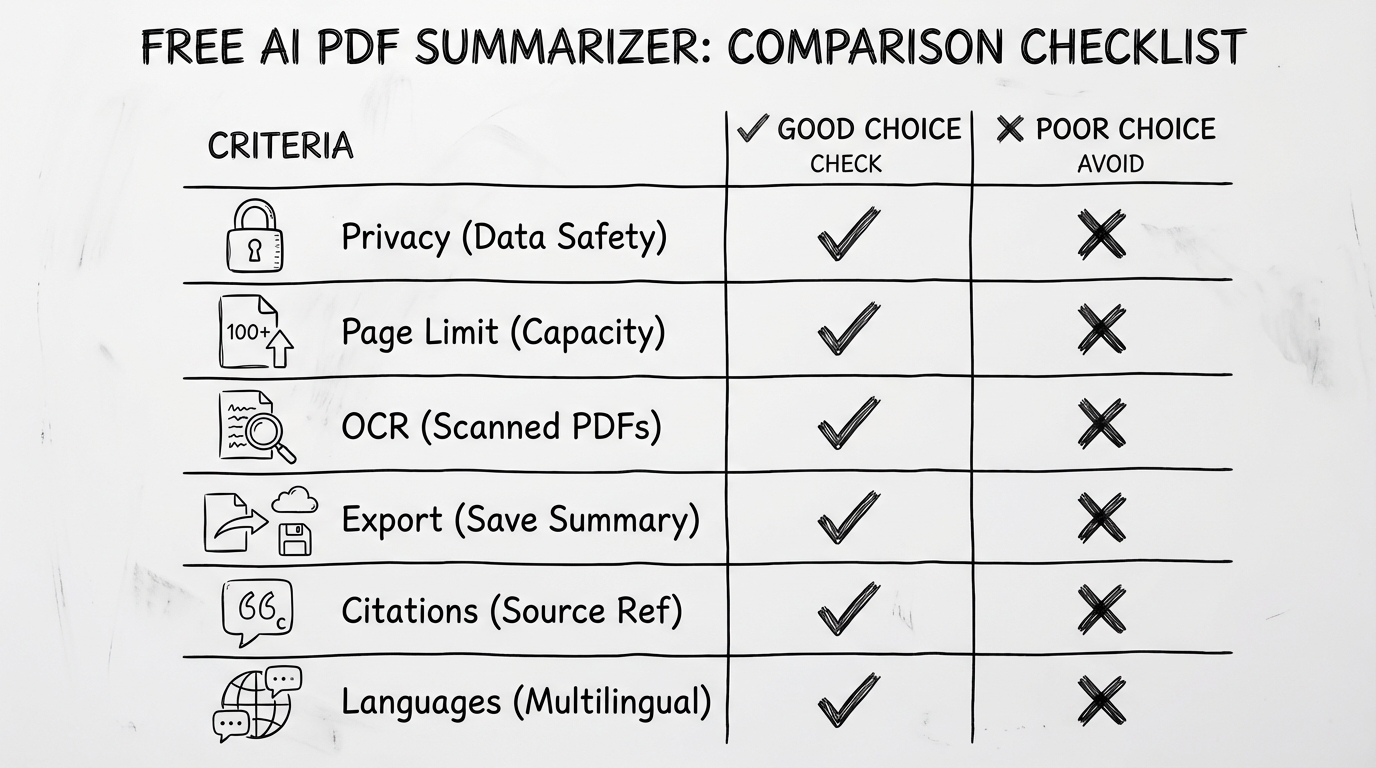
A quick checklist for picking a free AI PDF summarizer that won’t waste your time.
1) Privacy and data handling
Ask:
- Does the tool store files?
- How long are files retained?
- Is there a clear privacy policy?
If your PDF contains personal data (student lists, internal notes, contracts), prioritize tools with transparent deletion rules.
2) Document length support
If you summarize papers and lecture scripts, you’ll quickly hit limits. Look for:
- page range selection (e.g., summarize pages 20–40)
- chapter summarization
3) OCR quality (for scanned PDFs)
OCR is the difference between:
- “It works!”
- and “The summary is nonsense.”
Good OCR needs:
- clean scans
- correct language detection
- handling of multi-column layouts
4) Output format control
Best options:
- bullet points
- outline
- key terms + definitions
- “exam questions”
5) Citations / page references
Especially for academic writing, you need to trace claims back to the PDF. Without references, you’ll spend extra time verifying.
6) Exports
Can you export to:
- Markdown
- DOCX
- or at least copy cleanly?
7) Multilingual support
If you study in German but read papers in English, you want:
- summarize in original language
- or summarize into your preferred language
8) Study workflow features
Summaries are passive. Better is a pipeline:
- summary → flashcards → quiz → spaced repetition
9) Speed + reliability
If the site crashes on large PDFs, you lose time. A “fast” tool is the one that works consistently.
A practical workflow: summarize, verify, study
This workflow works for textbooks, research papers, and lecture slides.
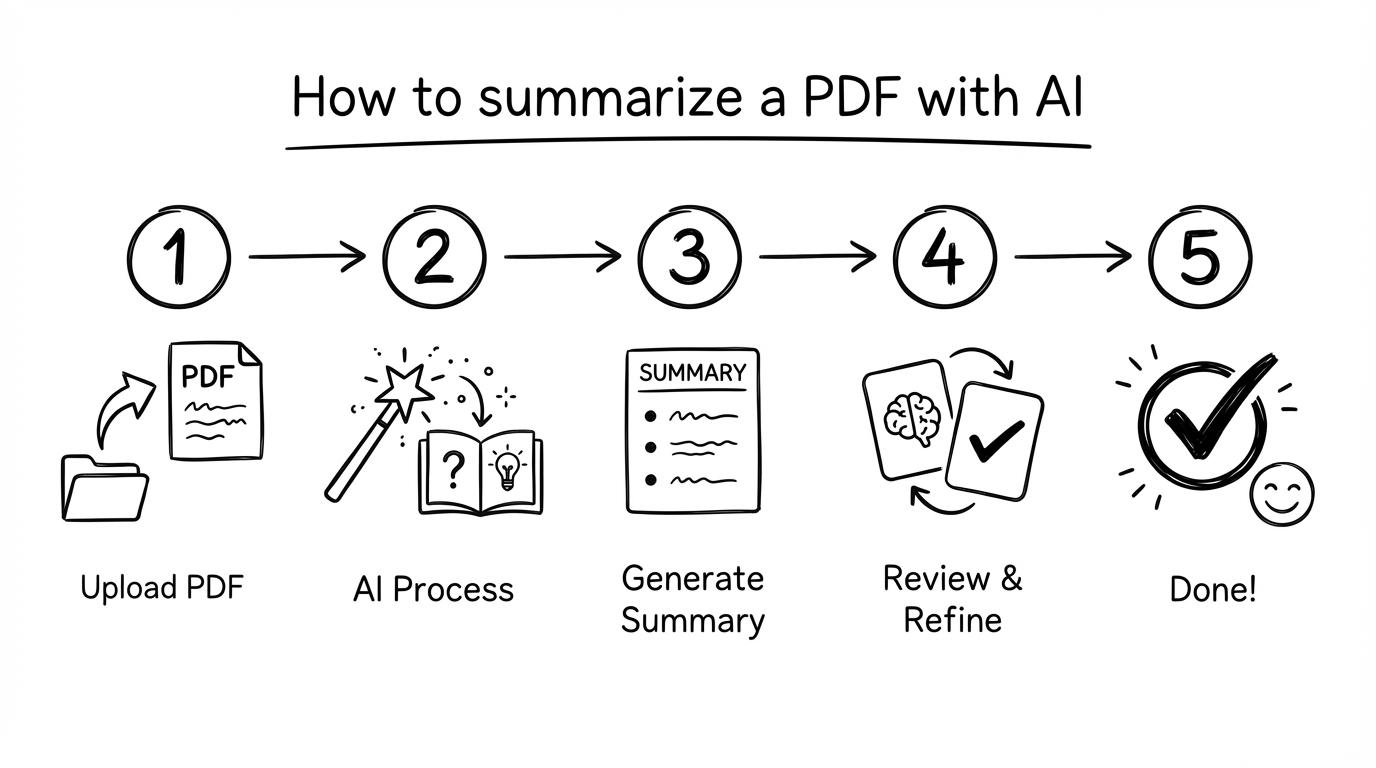
A simple 5-step workflow: summarize, verify, extract, practice, repeat.
Step 1: Decide your goal (don’t skip this)
Before you upload anything, answer:
- Do I need a 1-minute overview?
- Do I need exam-ready notes?
- Do I need definitions + examples?
Your goal determines the summary length and the best tool.
Step 2: Summarize in a structured format
Prefer an output like:
- Key takeaways
- Definitions
- Process/steps
- Open questions
This makes it easier to convert the summary into learning materials.
Step 3: Verify the “risky” parts
AI can misread:
- numbers
- definitions
- negations (“not”, “except”)
- causality (“X causes Y”)
Check those parts in the PDF (ideally with page references).
Step 4: Turn the summary into active recall
For studying, don’t just re-read your summary — active recall beats rereading. Convert it into:
- questions
- flashcards
- short quizzes
Step 5: Review with spaced repetition
A one-time summary is helpful. A review loop with spaced repetition is what makes it stick.
Turn PDFs into flashcards in minutes
Upload your lecture slides and get a summary, flashcards, and quiz-style questions with okti.
Try okti for freeTool reviews: strengths, weaknesses, best use cases
Below are short, honest reviews. The goal is not to crown a universal winner, but to help you choose based on your use case.
1) okti (best for learning output)
If your end goal is studying (not just “a shorter text”), okti is designed for a learning workflow.
What it’s good at
- Turning course material into structured summaries
- Creating flashcards from PDFs and lecture slides — here’s the full PDF-to-flashcards workflow
- Asking questions about the open PDF: the built-in viewer has a chat tab (beta), and generated flashcards keep a “View source” link to the exact page
- Helping you practice with active recall (questions/quiz-style prompts)
Where it can be weaker
- If you only want a one-off paragraph summary and nothing else, a generic summarizer might be enough.
Best for
- students who want a repeatable study pipeline (summary → flashcards → practice)
2) Smallpdf (best for “PDF tools suite” users)
Smallpdf is widely known for PDF editing and has expanded into AI features (summarize, chat, translate).
Strengths
- polished user experience
- often supports scans and OCR
- integrates with other PDF utilities
Weaknesses
- “free” is usually limited (trials, caps)
- for heavy study workflows, you’ll likely hit limits
Best for
- occasional summarization and document utility tasks
3) NoteGPT (best for multi-format summarization)
NoteGPT is positioned as an “all-in-one” summarizer for PDFs and other media.
Strengths
- supports multiple formats (PDF, video, text)
- some knowledge‑organization features (like mind maps)
Weaknesses
- free tier can be limited
- quality depends heavily on document type and length
Best for
- students who mix PDFs with video lectures and want one dashboard
4) Summarizer.org (best for quick, simple summaries)
If you want a quick summary without setup, tools like Summarizer.org can be useful.
Strengths
- straightforward
- often free and fast for short inputs
Weaknesses
- limited support for long PDFs
- no study workflow
- no citations/page references
Best for
- short texts and quick overviews
5) ChatGPT (best if you know how to prompt)
You can use a general AI assistant as a PDF summarizer, but you’ll need to:
- provide text (extract it first)
- chunk long documents
- ask for structured output
Strengths
- very flexible
- can generate questions, explanations, examples
Weaknesses
- manual workflow
- easy to lose structure
- citations/page references are not guaranteed
Best for
- advanced users who can craft prompts and workflows
Feature comparison table (PDF, OCR, citations, export)
Use this table as a sanity check when you pick your tool.
| Feature | Why it matters | What to look for |
|---|---|---|
| Long PDF handling | lecture scripts and papers exceed limits fast | page selection, chapter summaries |
| OCR | scanned PDFs need text extraction | language-aware OCR, multi-column support |
| Citations/page refs | faster verification | clickable references or page numbers |
| Output formats | study readiness | bullets, outline, Q&A, key terms |
| Export | reuse in notes apps | Markdown/DOCX export or clean copy |
| Privacy | sensitive docs | retention policy + deletion |
Try this structure when your tool allows custom instructions:
- Create a 10-bullet summary.
- Extract key terms with 1-sentence definitions.
- Create 8 exam-style questions (mix: recall, application, trick questions).
- List 5 things the author assumes (implicit assumptions).
- Flag anything uncertain or ambiguous.
Pricing: what you get for free vs. paid
Pricing changes constantly, so focus on what tends to be gated:
Usually free
- short summaries of short PDFs
- basic copy/paste export
Often paid
- long PDFs
- OCR for scans
- advanced export (DOCX/Markdown)
- unlimited Q&A
- citations/page references
If you study regularly, paying for a tool that creates flashcards and questions can save more time than paying for slightly “better” paragraph summaries.
Common mistakes and how to avoid them
Mistake 1: Treating the summary as truth
AI can hallucinate or misread. Fix: verify numbers, definitions, and “exception” statements.
Mistake 2: Summarizing everything at once
Long PDFs are easier if you summarize per section. Fix: summarize chapters (or page ranges) and merge later.
Mistake 3: Studying passively
Reading summaries feels productive but doesn’t build recall. Fix: convert to questions/flashcards.
Mistake 4: Ignoring layout issues
Multi-column PDFs and tables confuse many tools. Fix: if possible, export to text or use a tool with better PDF parsing.
FAQ: free AI PDF summarizers
What is the best free AI PDF summarizer in 2026?
There isn’t one “best” for everyone. If you want a study workflow (summary → flashcards → practice), okti is a strong choice. If you need a general PDF toolkit, tools like Smallpdf can be convenient.
Is there a free AI PDF summarizer with no limit?
Some tools advertise “unlimited,” but most impose at least one limit (pages, file size, daily usage). A practical approach is to pick a tool that supports page range summaries and summarize in chunks.
Can I summarize scanned PDFs for free?
Only if the tool provides OCR. If OCR is missing or weak, you’ll get poor results. For best OCR results, use clean scans (300 dpi if possible).
Are “no signup” PDF summarizers safe?
Not automatically. “No signup” doesn’t guarantee privacy. Check retention and deletion policies, and avoid uploading sensitive documents to unknown services.
Can I use these summaries in academic writing?
Use summaries to understand content faster, but always cite the original PDF and verify quotations. AI summaries can miss nuance.
Why does the summary miss tables and figures?
Many summarizers primarily extract continuous text. Tables and figures often require specialized parsing or manual review.
How do I turn a summary into something I can study?
The fastest path is: summary → key terms → questions → flashcards → review. Tools like okti are built around that pipeline.
Conclusion: the best choice for students
A free AI PDF summarizer can save you hours—if it matches your document type and doesn’t break your workflow with hidden limits.
- If you want learning outputs (flashcards, questions, practice): choose okti.
- If you want an all-purpose PDF toolbox and occasional summaries: pick a PDF suite tool.
- If you just need a quick overview of short text: a simple summarizer is enough.
The key idea: don’t stop at “summary generated.” The real productivity boost comes when you turn that summary into active recall.
Read next: AI summary generator — prompts and a workflow for genuinely good summaries.
Study smarter with your PDFs
Upload a PDF once and get a summary, flashcards, and practice questions with okti.
Start free